

Overview
Scheduled Tasks let you run any agent automatically on a recurring schedule. Create a task in Control Hub, pick an agent, write a prompt, set a schedule, and let it run on its own. Every execution starts a new conversation with the agent, just like sending a message manually.How It Works
Create the task
You create a scheduled task with an agent, a prompt (the message to send), and a schedule.
Aster checks what's due
Aster runs a job every minute that checks which tasks are due.
The prompt is sent
When a task is due, it sends the prompt to the agent as a new conversation.
The agent runs
The agent runs with all its tools, knowledge bases, and capabilities — just like an interactive chat.
The conversation appears
The resulting conversation appears in the dashboard with source
scheduled-task.Creating a Scheduled Task
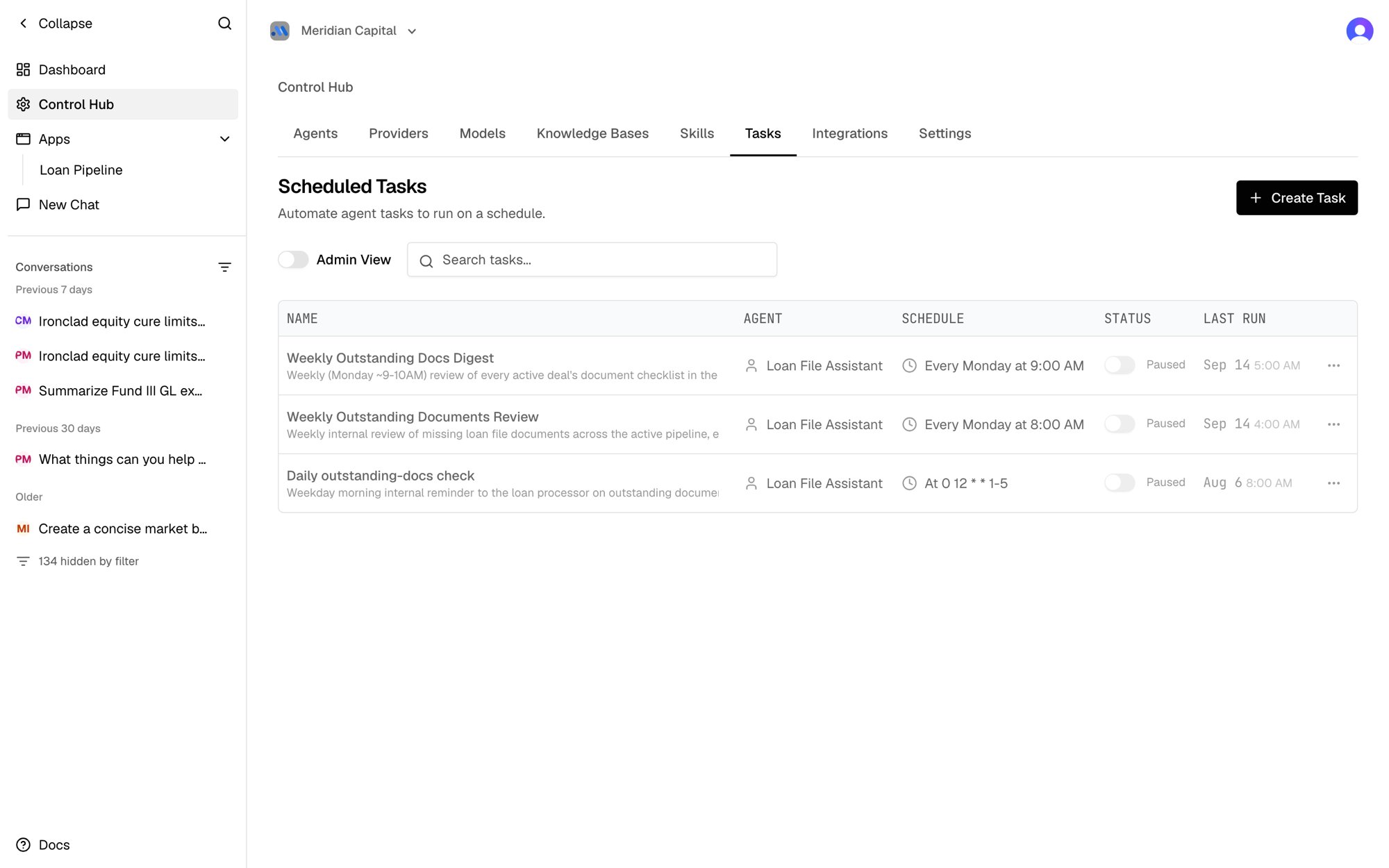
From Control Hub
Open Scheduled Tasks
Go to Control Hub → Tasks and click Create Task.
Fill in the form
- Task Name: A descriptive name (e.g., “Daily VP Candidate Digest”)
- Agent: Select which agent should run
- Description: Optional notes about what this task does
- Schedule: Use a preset or write a custom cron expression
- Prompt: The message the agent will receive when the task runs
Create the task
Click Create Task. The task starts enabled by default and will run on its next scheduled time.
From a Conversation (Manage Scheduled Tasks tool)
Agents with themanage_scheduled_tasks tool enabled can create scheduled tasks during conversations. Just ask:
- “Check stock prices every morning at 9 AM”
- “Send me a weekly summary of new candidates every Monday”
- “Run a daily report and email it to the team”
manage_scheduled_tasks tool in your agent’s configuration under Tools.
Schedule Options
Presets
Click a button under Quick Presets in the task form, or type one of these names into the schedule field. Times are UTC:Custom Cron Expressions
For more control, enter a standard 5-part cron expression:
A Schedule Preview under the field describes simple schedules in plain English, such as “Daily at 9:00 AM”. Other expressions are shown as written.
Schedules are stored and run in UTC, and the task form takes UTC times. When you ask an agent to schedule a task (“every weekday at 9am”), it converts your local time to UTC using your time zone’s current offset and tells you the UTC schedule it saved. Runs then shift by an hour in local time when daylight saving time changes. If a schedule can’t be converted exactly, the agent asks you to give it in UTC or split it into separate tasks.
Managing Tasks
Enable / Disable
Toggle any task on or off with the switch in the task list. Disabled tasks won’t run but keep their configuration and history.
Run Now
Trigger any enabled task immediately from the actions menu (three dots → Run Now). This creates a new execution just like a scheduled run.
Edit
Update the name, agent, prompt, or schedule of any task. Changes take effect on the next scheduled run.
Delete
Remove a task permanently. Execution history is preserved for reference.
Admin View
Organization admins can toggle Admin View to see all scheduled tasks across the organization, not just their own.
Execution History
Click View History in the task’s actions menu to see past executions:- Status: Running, Completed, or Failed
- Timestamps: When each execution started
- Conversation Links: Click through to the conversation created by each run
- Stats: Total runs, completed, failed, and success rate
Use Cases
Daily Digest Emails
Daily Digest Emails
Create a task that runs daily and emails a summary to your team.Task prompt example:
Recurring Reports
Recurring Reports
Have an agent query your database and generate a report on a schedule.Task prompt example:
Monitoring & Alerts
Monitoring & Alerts
Schedule an agent to check for issues and notify your team.Task prompt example:
Combining with Other Features
Scheduled tasks work with all agent capabilities:Best Practices
- Write clear, specific prompts. The agent receives only the prompt text — it doesn’t have context from previous runs. Include all the instructions it needs in the prompt itself.
- Use the right schedule frequency. Don’t run tasks more often than needed. A daily digest doesn’t need to run every 15 minutes.
- Test with Run Now first. Before relying on the schedule, use Run Now to verify the agent produces the output you expect.
- Check execution history. Review past runs periodically to catch failures or unexpected behavior.
- Include error handling in prompts. Tell the agent what to do when there’s nothing to report (e.g., “If no new data, send a brief confirmation email instead”).